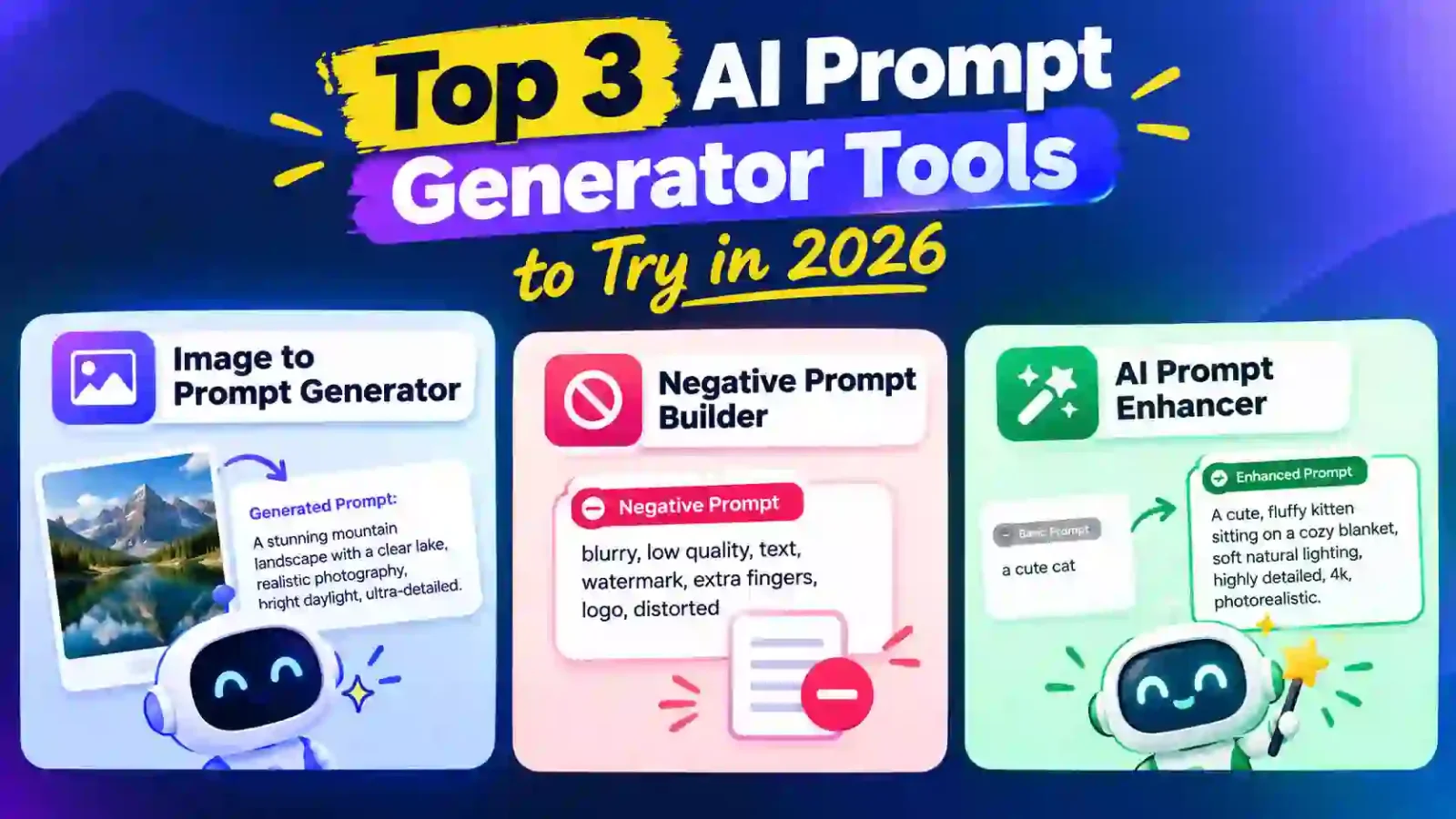
Top 3 AI Prompt Generator Tools That Fix Weak AI Results
You type a request into an AI tool, hit enter, and get something bland. Or something that misses the point entirely. So you rewrite it. Then rewrite it again. Twenty minutes later, you are still tweaking words instead of getting work done.
Here is the thing: the AI is rarely the problem. The prompt is. A vague instruction produces a vague answer, and most of us were never taught how to write a good one.
That is exactly where an AI prompt generator earns its place. These tools do the heavy lifting: they build prompts from images, sharpen rough ideas, and filter out what you do not want. Below are three free tools worth bookmarking, what each one does best, and how to use them together.
Why a Prompt Generator Beats Guesswork
Good prompts follow a pattern. They state a clear goal, add context, set a format, and include limits. Writing all of that from scratch every time is slow, and it is easy to skip a step when you are in a hurry.
Even the major AI labs stress this. OpenAI’s prompt engineering guide recommends writing clear instructions, giving the model reference material, and testing changes step by step. A prompt tool simply bakes those habits into your workflow.
Here is what you gain:
- Speed: fewer rewrites and fewer wasted generations.
- Consistency: your prompts follow a reliable structure every time.
- Better output: specific instructions lead to results that match your vision.
- Lower learning curve: beginners get pro-level phrasing without years of practice.
Quick Comparison: The 3 Tools at a Glance
- Image to Prompt Generator: best when you have a picture and want the words that describe it.
- Free AI Prompt Enhancer: best when you have a rough idea and want a stronger version.
- Negative Prompt Builder: best when your image results keep including things you do not want.
1. Image to Prompt Generator
Ever seen an image and wondered, “How do I get something like that?” This is the tool for that moment.
The Image to Prompt Generator works in reverse. You upload a picture, and it gives you a text prompt describing what it sees, including the subject, style, mood, lighting, and composition.
Who It Is For
- Designers hunting for a specific visual style.
- Digital artists who want to recreate or remix a look.
- Marketers who need consistent visuals across campaigns.
- Anyone new to AI art who does not know the right vocabulary yet.
How to Get the Most Out of It
Start with a clear, well-lit image. The cleaner the source, the more useful the description. Once you have the generated prompt, treat it as a draft. Change the subject, swap the color palette, or shift the setting, and you have an original idea built on a solid foundation.
One honest note: only upload images you own or have permission to use, and avoid copying another creator’s work too closely. Use the output for inspiration and learning.
2. Free AI Prompt Enhancer
Most of us write prompts like text messages: short, rushed, and missing context. “Write a blog post about coffee” is a perfect example. It tells the AI almost nothing.
The Free AI Prompt Enhancer takes a rough idea like that and rebuilds it into a clearer, more complete instruction. It is the quickest way to move from “meh” to “that is what I meant.”
What a Better Prompt Looks Like
Compare these two:
- Before: “Write about healthy breakfast ideas.”
- After: “Write a 600-word beginner-friendly guide to five healthy breakfast ideas for busy professionals. Use a friendly tone, include prep time for each, and end with a short shopping list.”
The second version gives the AI an audience, a length, a tone, and a structure. That is the kind of upgrade an enhancer is built to deliver.
Best Use Cases
- Drafting emails, articles, and social posts with chat-based AI.
- Writing code requests that need clear requirements.
- Brainstorming when you only have a half-formed thought.
- Cleaning up prompts you already use but that feel inconsistent.
Pro tip: after enhancing, read the result once and add one personal detail, such as your brand voice or a specific example. That small touch makes the output feel like yours.
3. Negative Prompt Builder
Telling an AI what you want is only half the job. Telling it what you do not want is the other half, and most people skip it.
The Negative Prompt Builder helps you create a list of things to exclude from image generations. Think blurry edges, distorted hands, odd text, watermarks, or low-quality artifacts. This is especially helpful in tools that support negative prompts, such as many Stable Diffusion setups.
Why Negative Prompts Matter
- Cleaner images: fewer common flaws on the first try.
- More control: you steer the result away from styles you dislike.
- Less waiting: fewer regenerations means less time and fewer credits spent.
A Simple Way to Use It
Build your main prompt first. Then generate a negative list that matches your goal. A product photo needs different exclusions than a fantasy illustration. Run a test, see what slipped through, and add those items to your list. Over time, you will build a reusable set for each project type.
How to Combine All Three for Better Results
Each tool is useful alone, but they work even better as a sequence. Here is a simple workflow:
- Start with inspiration. Upload a reference image to the Image to Prompt Generator and collect the descriptive language.
- Refine the idea. Paste that draft into the Free AI Prompt Enhancer and tune it toward your own concept.
- Block the junk. Use the Negative Prompt Builder to filter out unwanted details.
- Test and adjust. Change one element at a time so you know what made the difference.
That last step matters more than it sounds. If you change five things at once, you will never learn which change helped.
Common Prompt Mistakes to Avoid
- Being too vague. “Make it look good” gives the AI nothing to work with.
- Overstuffing. Cramming in dozens of contradicting details confuses the result.
- Skipping the format. Say whether you want a list, a table, a paragraph, or a script.
- Ignoring the audience. A prompt for beginners should read differently than one for experts.
- Publishing without review. AI output still needs a human check. Google’s guidance on creating helpful, people-first content is a good reminder that quality and usefulness matter more than how the content was produced.
Key Takeaways
- A weak prompt usually causes a weak result. Fix the prompt first.
- The Image to Prompt Generator turns pictures into descriptive text.
- The Free AI Prompt Enhancer upgrades rough ideas into clear instructions.
- The Negative Prompt Builder helps you exclude what you do not want in images.
- Use all three together, change one variable at a time, and always review the final output.
Frequently Asked Questions
What is an AI prompt generator?
An AI prompt generator is a tool that helps you write better instructions for AI models. It can build a prompt from an image, improve a rough idea, or add details you would otherwise forget, so the AI returns more accurate results.
Are AI prompt generators free to use?
Many are. The Free AI Prompt Enhancer on 2ccallapp.online is built to be used at no cost. Always check each tool’s page for current limits or features.
What is a negative prompt and why does it matter?
A negative prompt tells an image model what to leave out, such as blurry details, extra fingers, or watermarks. It gives you more control over the final image and cuts down on repeated regeneration.
Can I turn a picture into a text prompt?
Yes. An image to prompt generator analyzes a picture and writes a text description of its subject, style, lighting, and composition. You can then use that text as a starting point in an AI image tool.
How do I write a better AI prompt?
Be specific about the goal, give context, state the format you want, and add constraints. Then test the result and adjust one detail at a time.
Conclusion: Stop Rewriting, Start Creating
Great AI results do not come from luck. They come from clear instructions. With the right helpers, writing those instructions takes seconds instead of an afternoon of trial and error.
To recap, use the Image to Prompt Generator when you need the words behind a visual, the Free AI Prompt Enhancer when your idea needs polish, and the Negative Prompt Builder when you want cleaner images with fewer surprises.
Ready to try them? Head to 2ccallapp.online, pick a tool, and test it on the prompt that has been giving you trouble. You will see the difference on the first run.